
You can create calendars in the CSIC email platform and then use them in Thunderbird, these calendars are stored in a server, not in your local machine, so allways will be updated even if you do it from a different machine. First, go here and login with your CSIC account.
Once logged in, your mailbox will be shown, you can go to the calendar section by clicking in the icon at the top-right.

You’ll see that you have already a personal calendar created, click in the three dots to toggle the vertical menu and then go to “Links to this Calendar”.

Copy the “CalDAV URL” under the section “Authenticated User Access” and then open Thunderbird.

In Thunderbird, go to Calendar and click in “New Calendar”, a new window will pop out.

Select “On the Network” and click “Next”.

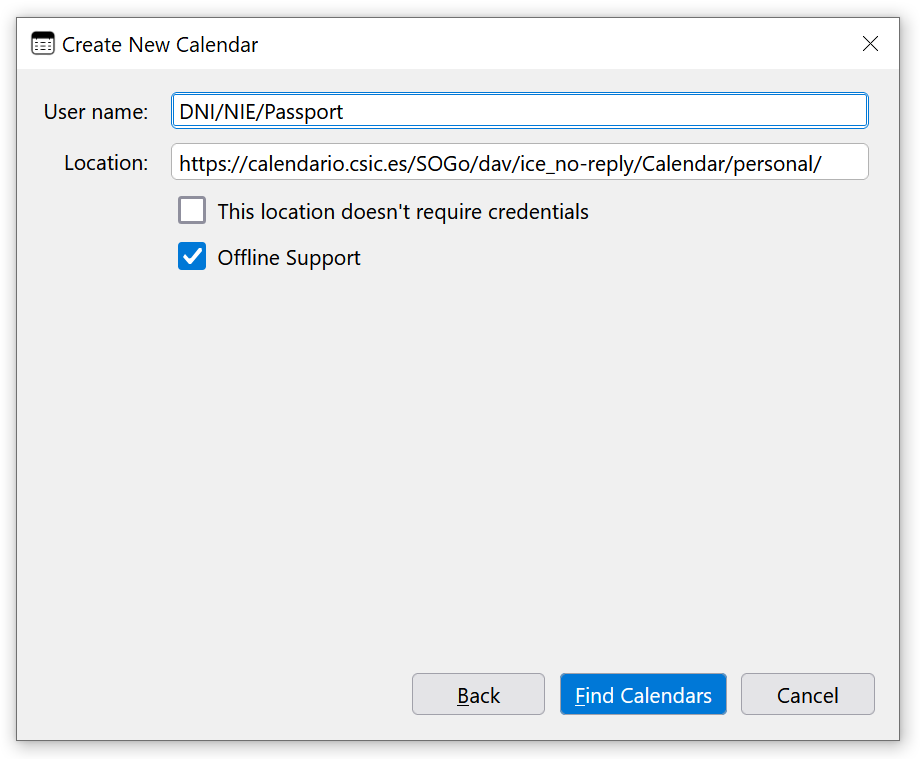
Next, write your CSIC username in “User name” and paste the CalDAV link that you copied before. Then, click “Find Calendars” and you will be prompted to put your password.
Finally, a final window where you can customize your calendar will be shown, click “Subscribe” to end the configuration process.
