
Ricoh IM C3010 are the printers at the floors 0, 1 and 2 of the ICE. The parameters for each one are the following.
| Location | Hostname | IP Address |
|---|---|---|
| Bottom floor | RNP583879ADD13A | 10.50.1.156 |
| 1st floor | RNP583879ADD1E6 | 10.50.1.152 |
| 3rd floor | RNP583879ADD1EE | 10.50.1.153 |
| 2nd floor | RNP583879ADD194 | 10.50.1.154 |
Linux (Debian) configuration
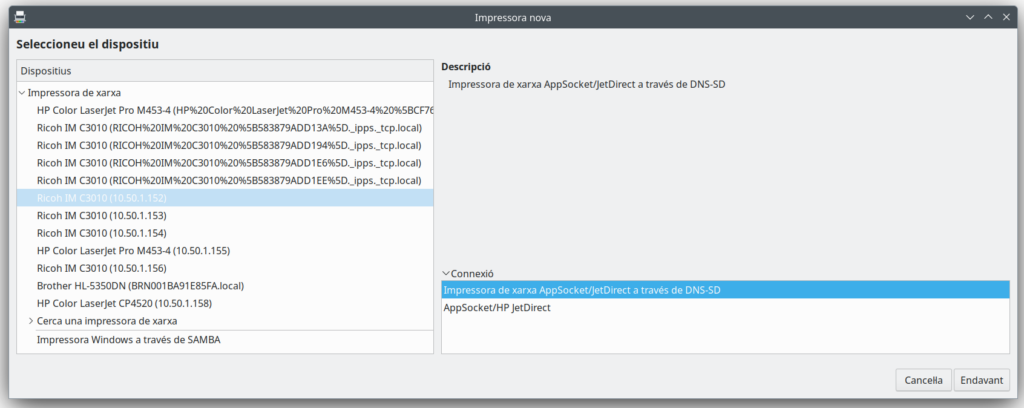
In your printer settings, add a new printer. Then, in the “Network Printer” section search using the IP address for the printer you want to use , in this example, the 1st floor printer with IP 10.50.1.152 will be configured, after selecting the printer, select this”Network Printer AppSocket/JetDirect via DNS-SD” thing as the conection type. Click next.
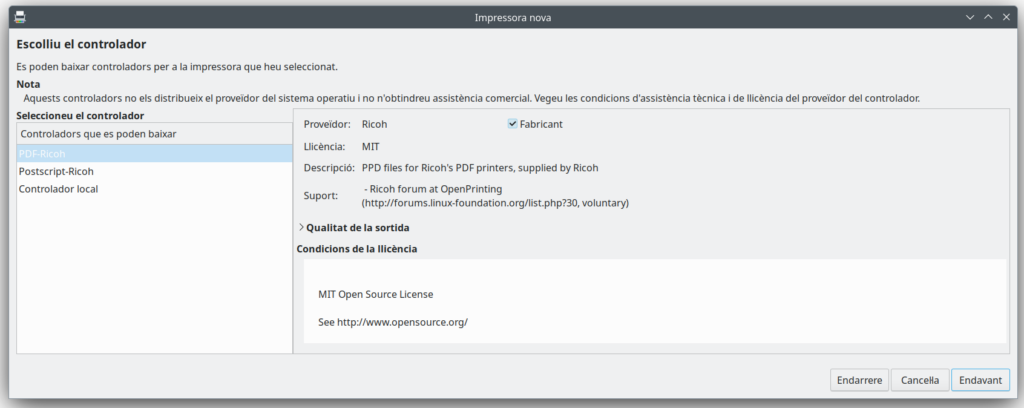
The drivers for this printer will be searched, select “PDF-Ricoh” as the driver.
Then, you are going to be asked to do some configuration about stuff, just select the default or recomended on everything.
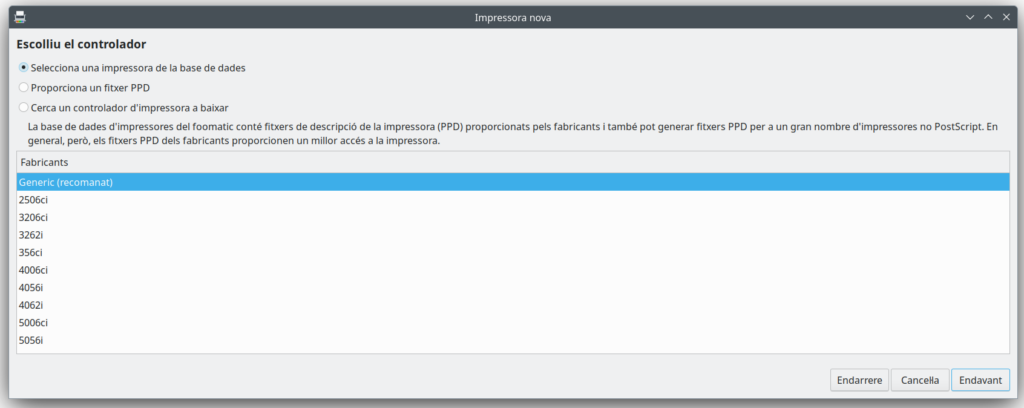
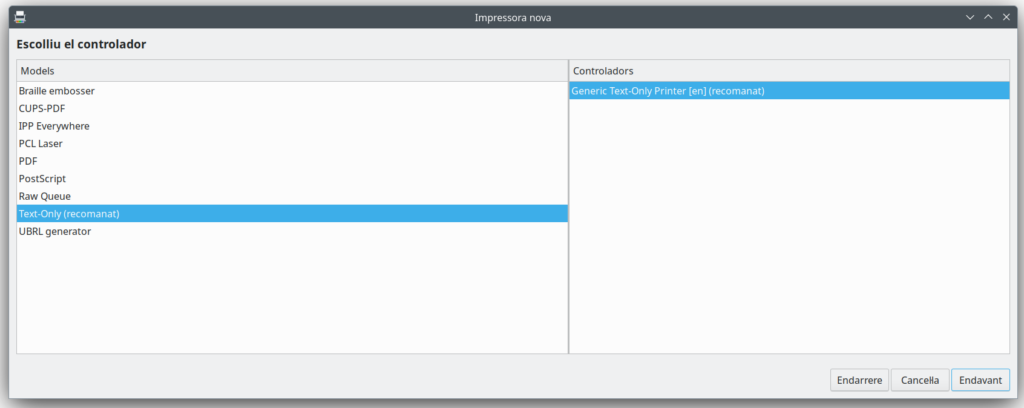
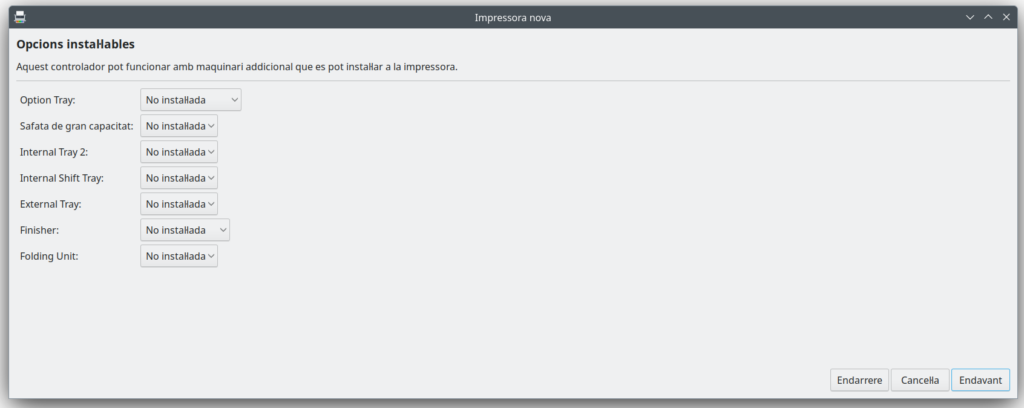
Finally, give the printer a display name, and end the configuration process. Additionaly, you can print a test page.
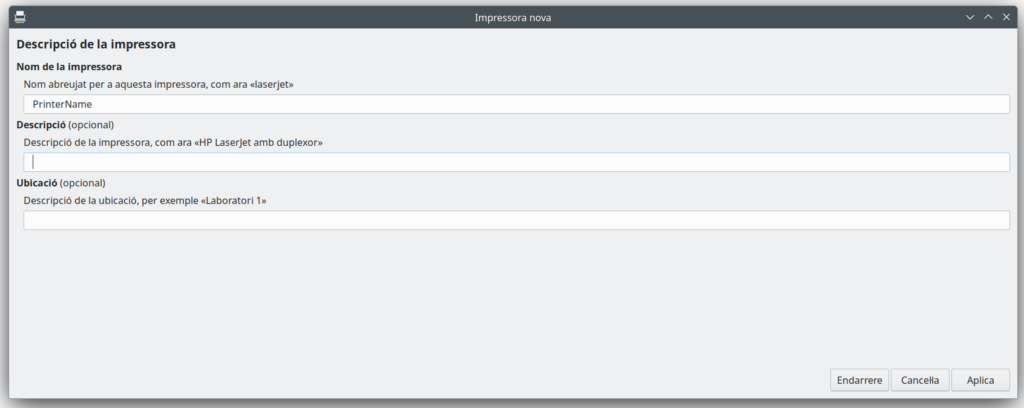
With this, the printer configuration is completed.
MAC configuration
Go to the printer configuration and add a new printer. Then select the printer that you want to add based in the printer hostname, then click “Add”. The string between square brackets [] is the printer hostname, you can use the last two digits to difference the different printers.
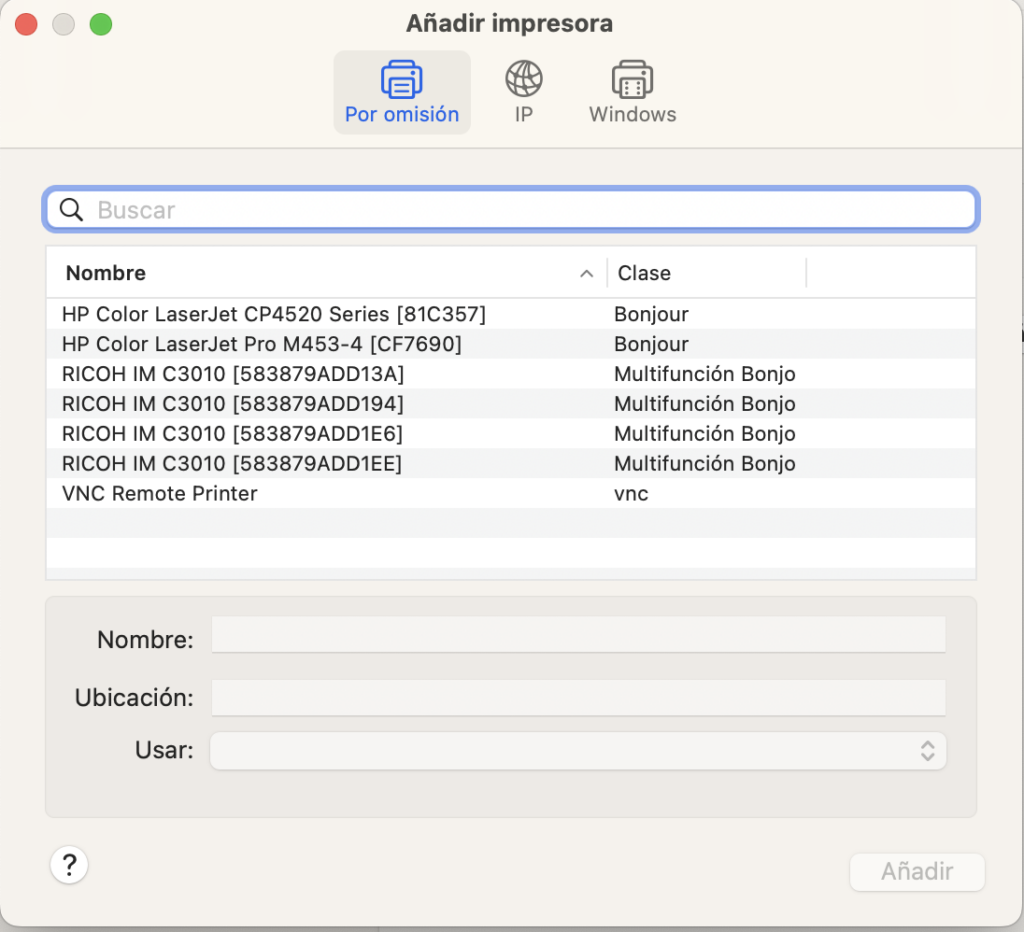
With this, the printer configuration is completed.
Windows configuration
Open windows “Printers & Scanners” configuration and select “Add printer or scanner”.
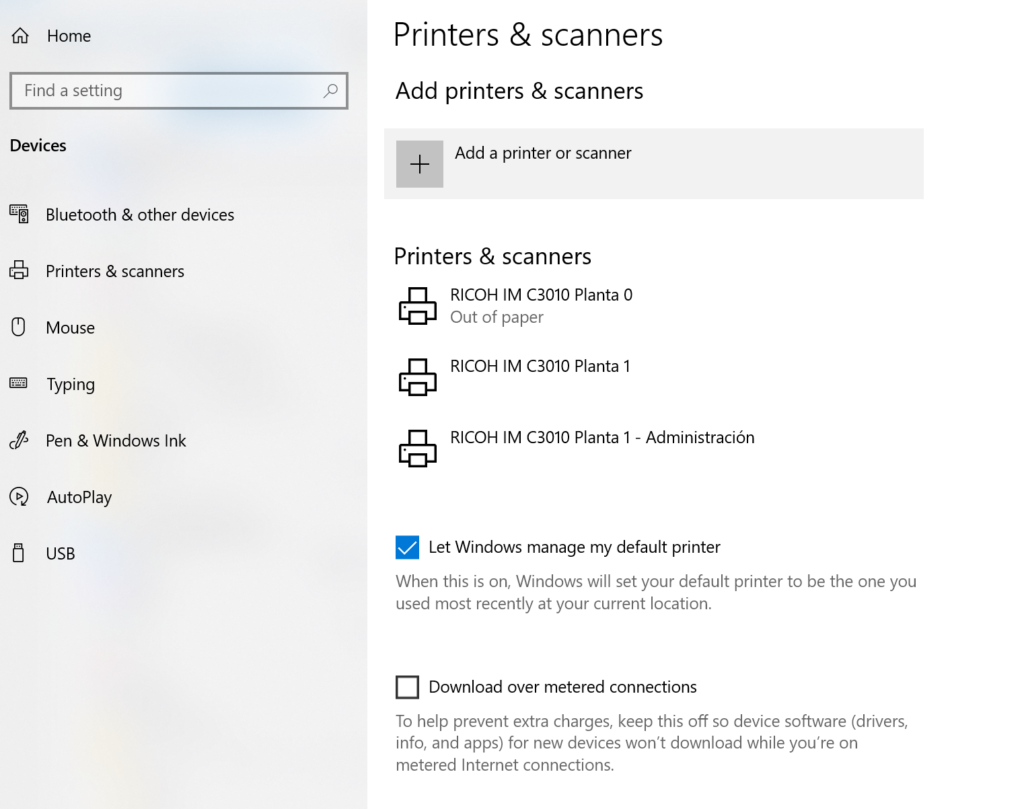
A list with the network printers will be displayed, then select the printer that you want to add based in the printer hostname, then click “Add device”. The string between square brackets [] is the printer hostname, you can use the last two digits to difference the different printers.
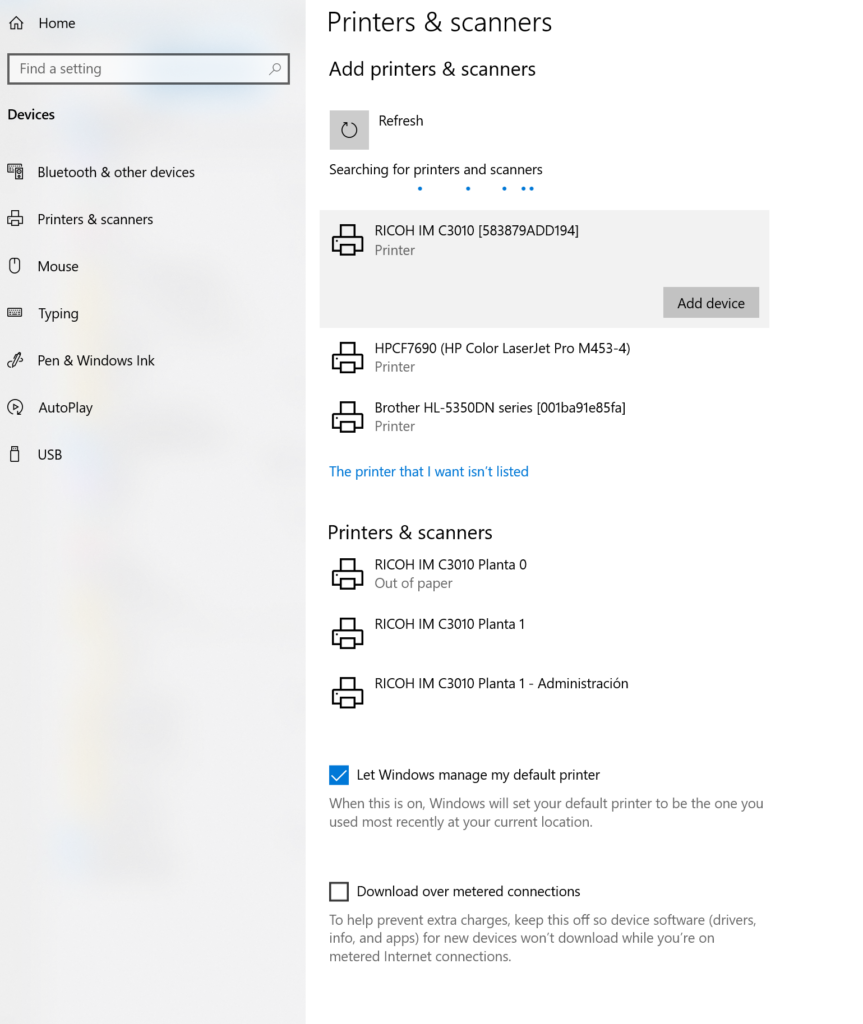
After a few seconds you printer should appear.
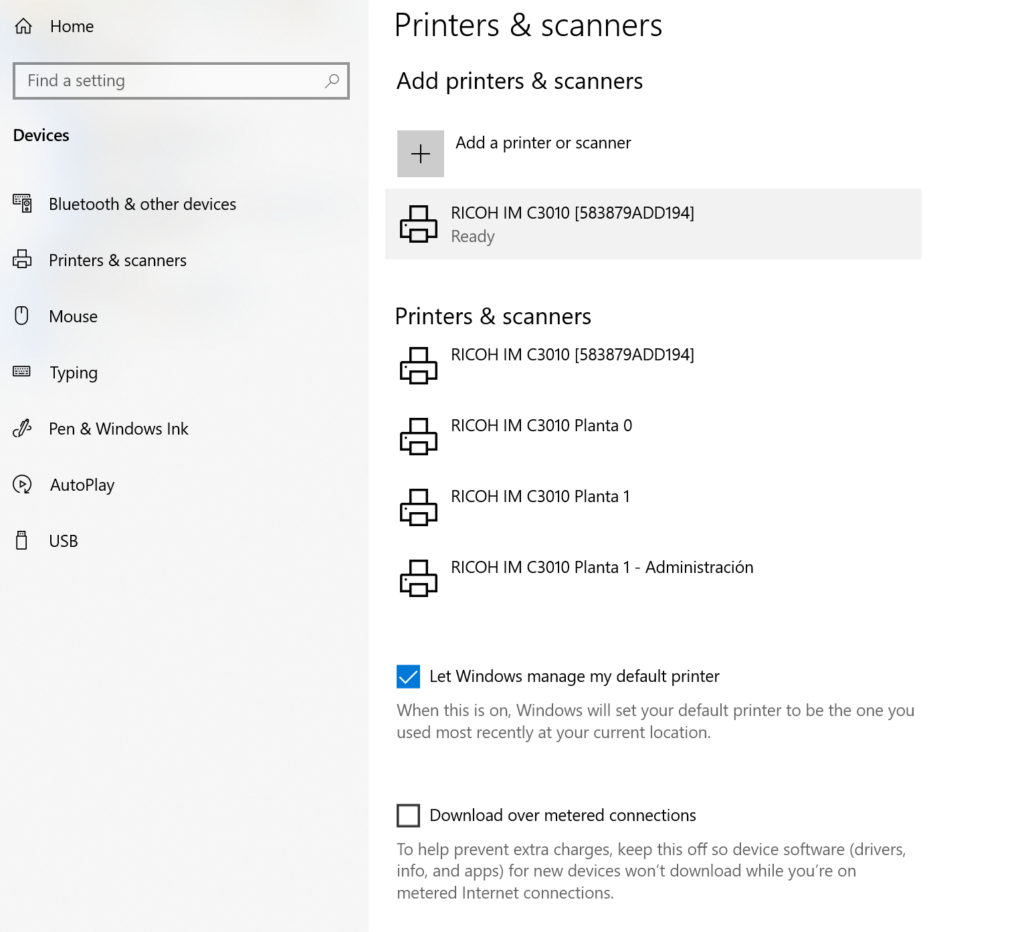
With this, the printer configuration is completed.