
You can acces CSIC’s GitLab here by login with your credentials.
In order to export an existing repository from the ICE GitLab do the following:
Step 1 – Acces ICE GitLab service
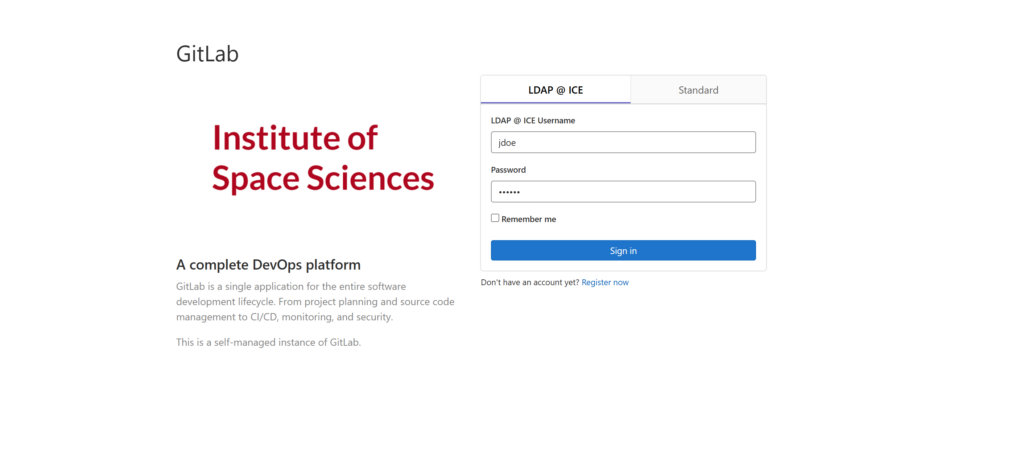
Go to the ICE Gitlab servers https://gitlab.ice.csic.es and log in with your ICE User credentials.
Step 2 – Export the project
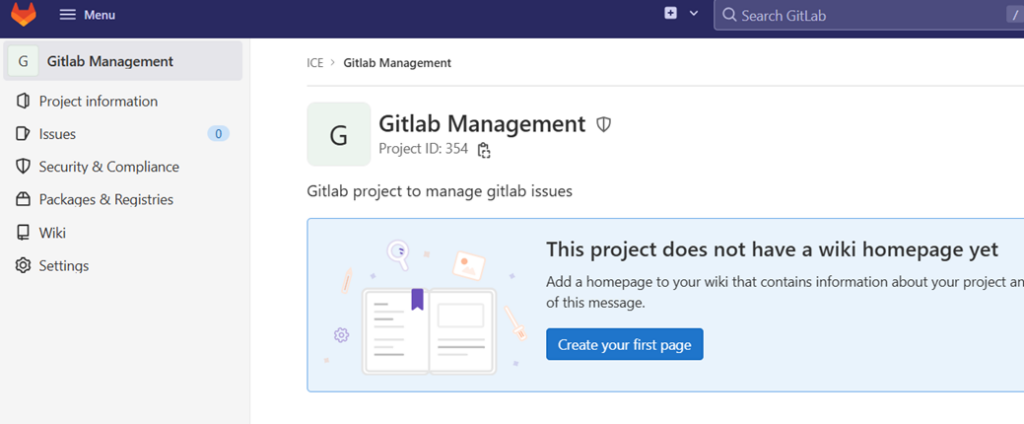
Go to the project that you want to export. Notice that If you have unsynced project changes in your local folder, before performing the next step, you must upload the changes to the repository.
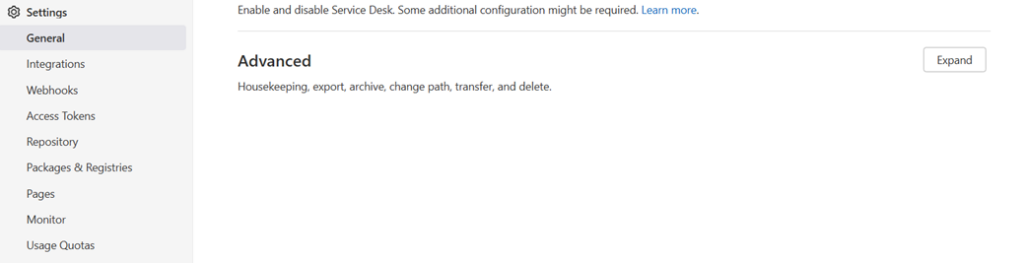
Go to Settings-> General -> Advanced Settings and click in Expand button.
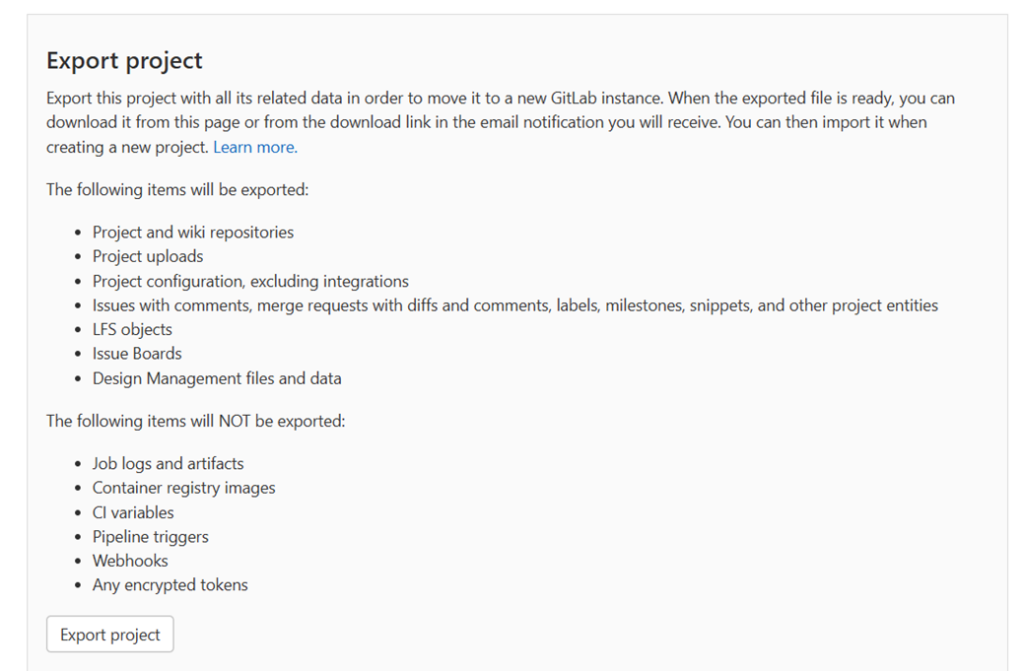
Scroll down to Export Project and press the Export project button.
After pressing the button, a banner indicating that the project is being exported will be shown, and after a few minutes (depending on the size of the project), you will receive an email to download it.

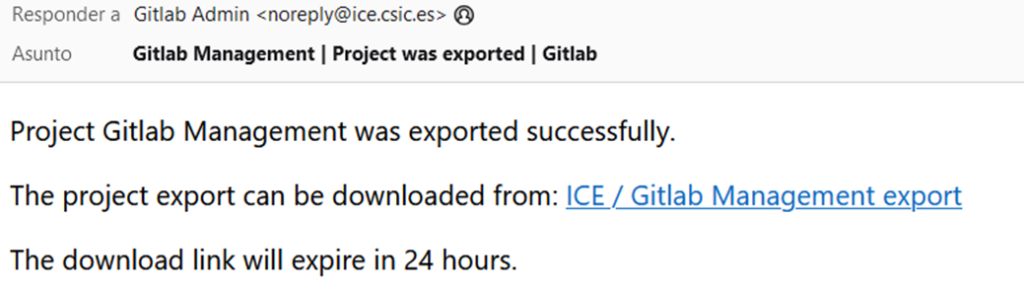
Step 3- Download the exported project
Click on the link to start the download of the project.

Step 4 – Import the project
Now, go to CSIC’S GitLab and log in with your CSIC credentials. Then, create a new project.

Select the Import Project option.
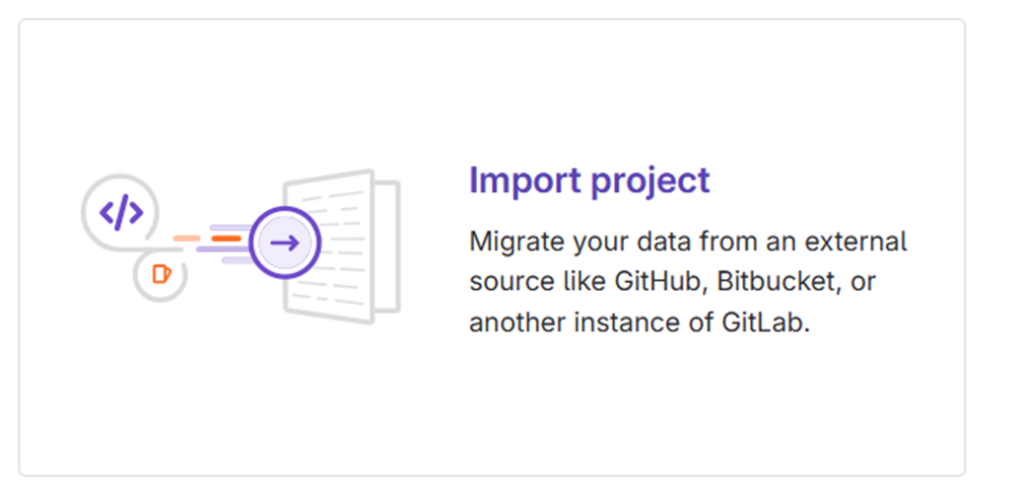
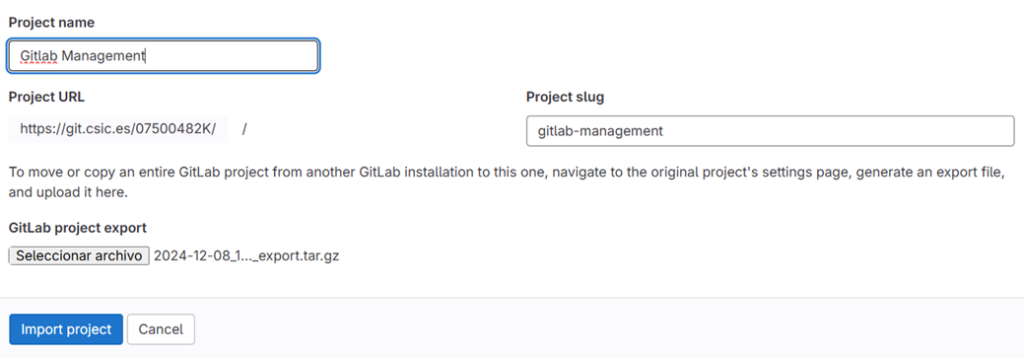
Click in GitLab export.

Then, select the previously download file and complete the setup. It can take a while until it finishes.
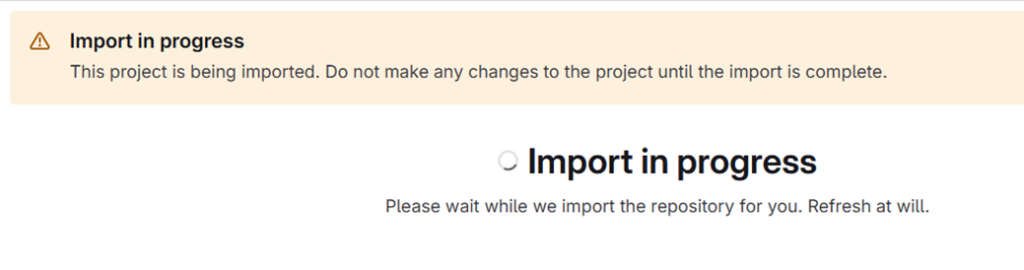
With this you successsfully imported your project to CSIC’s GitLab.