Posted on

CSIC GitLab Service

You can acces CSIC’s GitLab here by login with your credentials.

In order to export an existing repository from the ICE GitLab do the following:

Step 1 – Acces ICE GitLab service

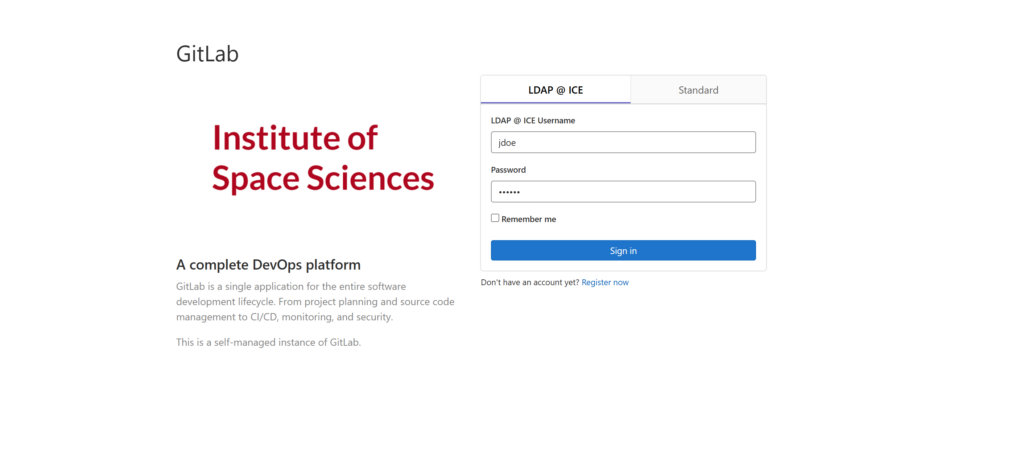
Go to the ICE Gitlab servers https://gitlab.ice.csic.es and log in with your ICE User credentials.
Step 2 – Export the project

Go to the project that you want to export. Notice that If you have unsynced project changes in your local folder, before performing the next step, you must upload the changes to the repository.
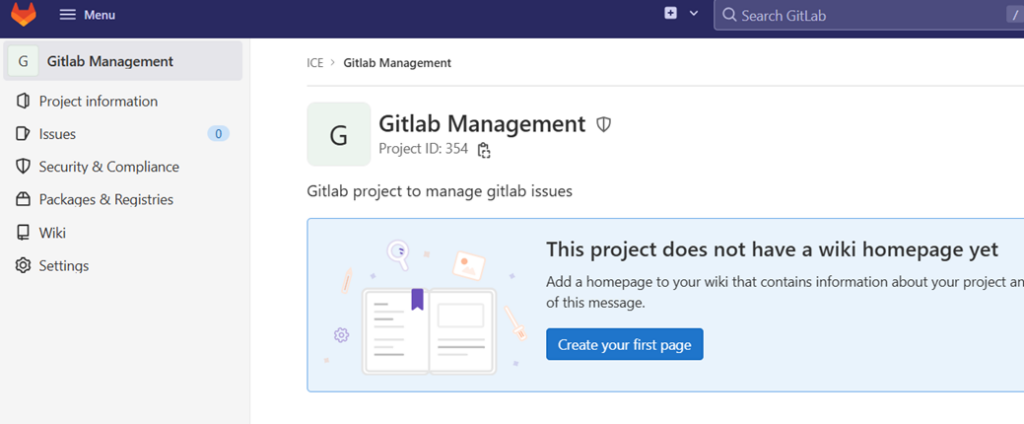
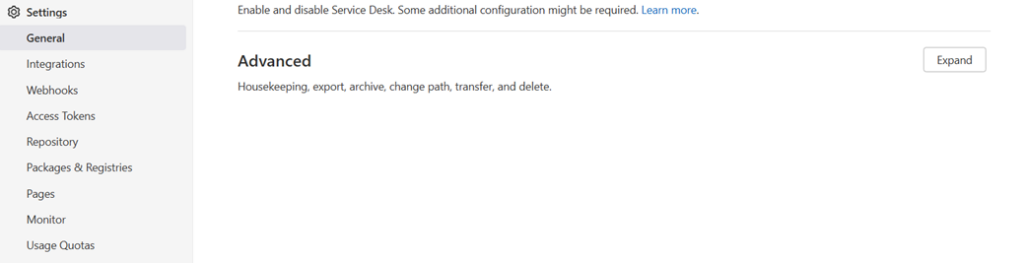
Go to Settings-> General -> Advanced Settings and click in Expand button.
Scroll down to Export Project and press the Export project button.
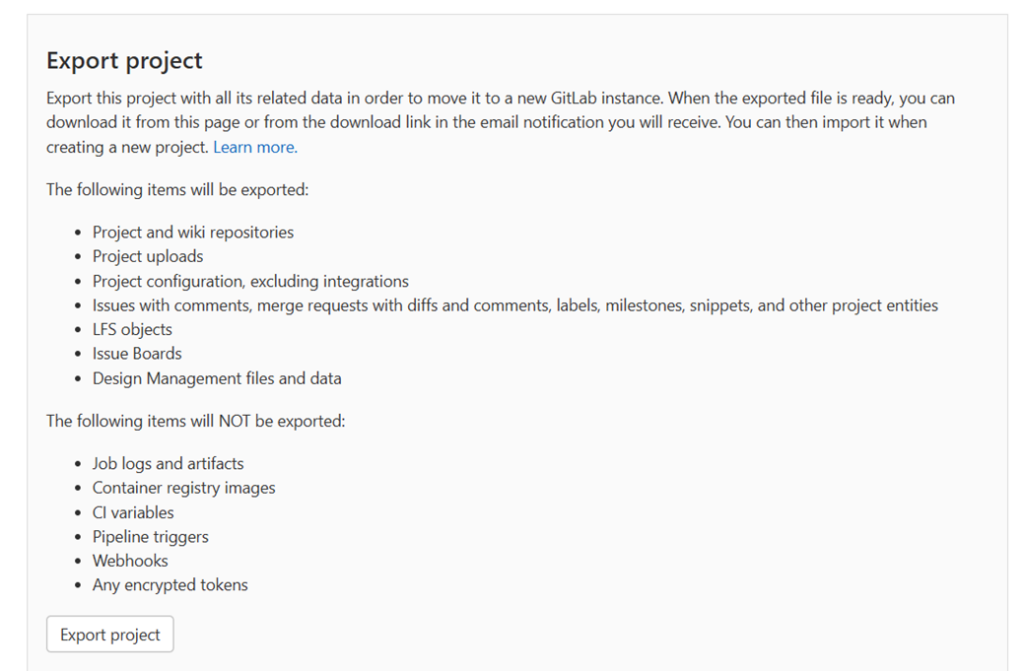
After pressing the button, a banner indicating that the project is being exported will be shown, and after a few minutes (depending on the size of the project), you will receive an email to download it.

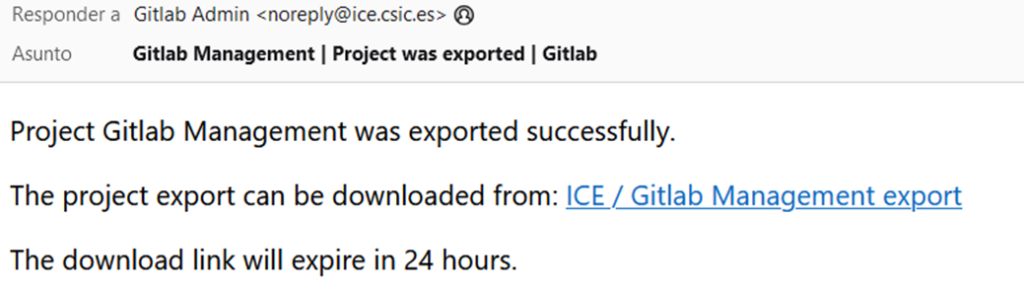
Step 3- Download the exported project

Click on the link to start the download of the project.
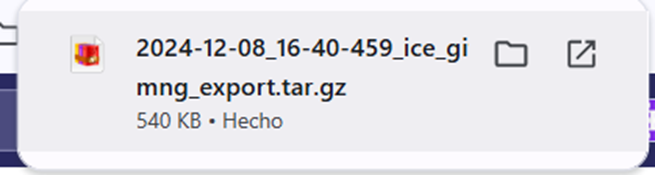
Step 4 – Import the project

Now, go to CSIC’S GitLab and log in with your CSIC credentials. Then, create a new project.

Select the Import Project option.
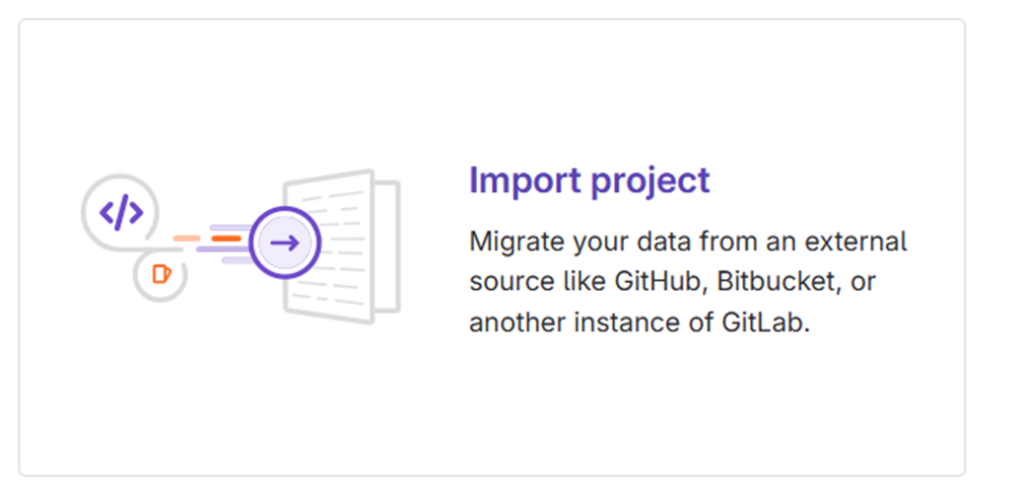
Click in GitLab export.

Then, select the previously download file and complete the setup. It can take a while until it finishes.
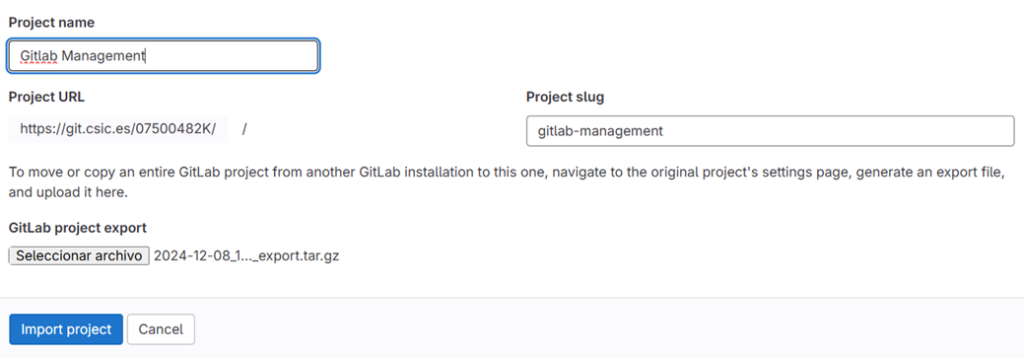
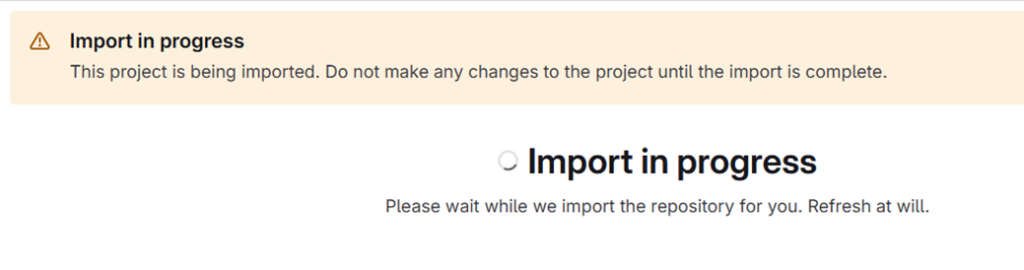
With this you successsfully imported your project to CSIC’s GitLab.
Posted on

Printer configuration (Model Ricoh MP C4504ex)

Ricoh MP C4504ex is the printer located at the administration office of the ICE. Its parameters are the following.

LocationHostnameIP Address
1st floor – Administration58387912411F10.50.1.158

Windows configuration

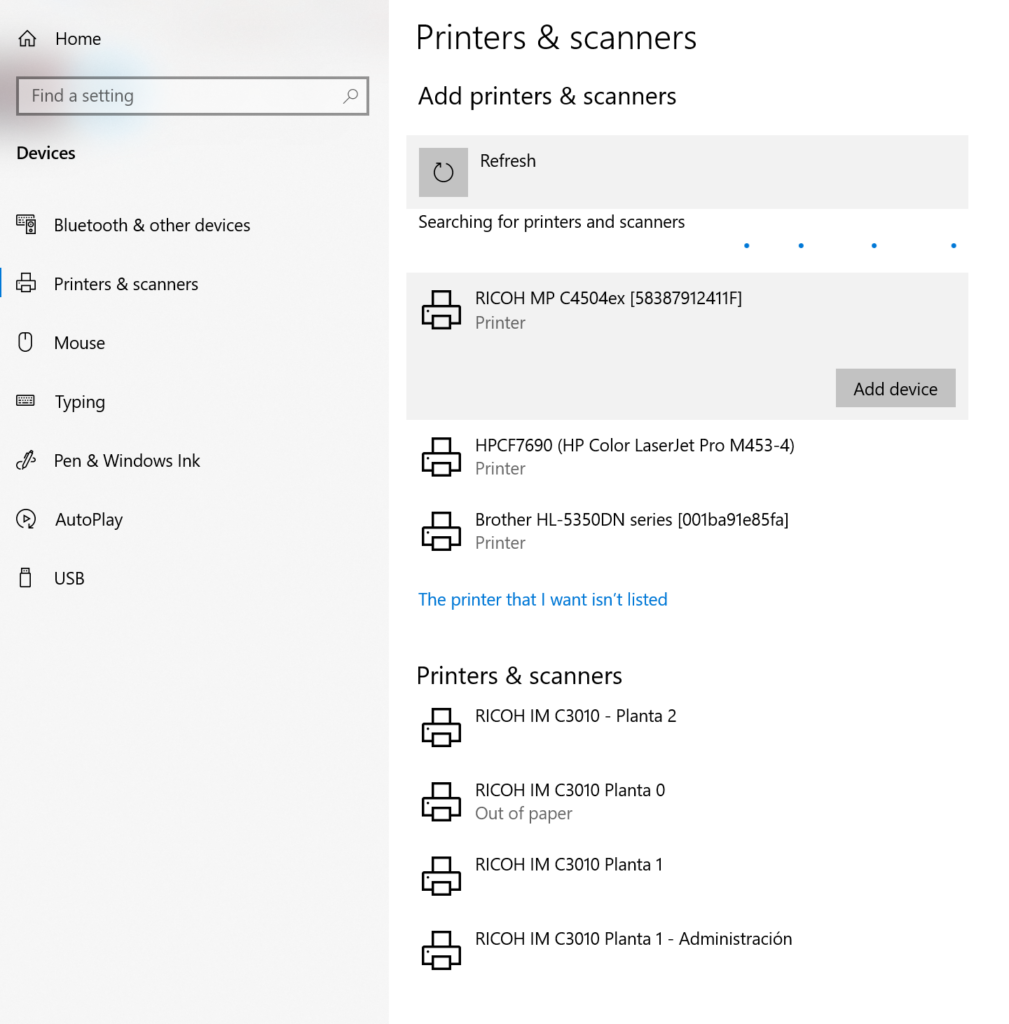
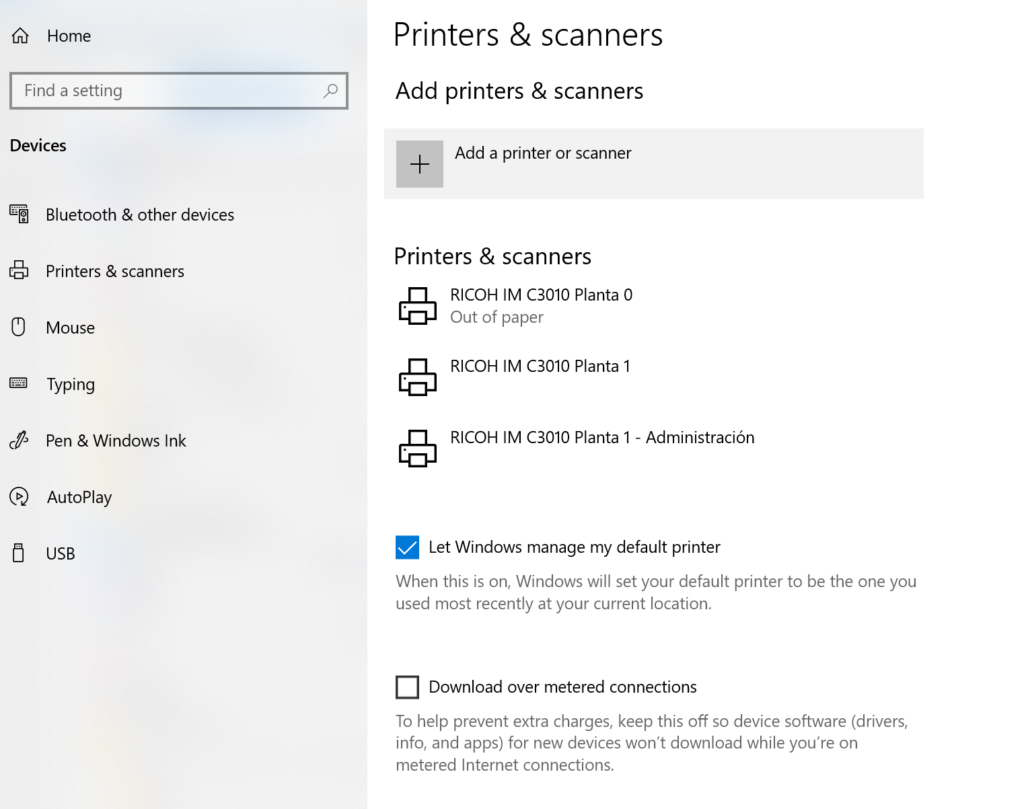
Open windows “Printers & Scanners” configuration and select “Add printer or scanner”.

A list with the network printers will be displayed, then select the printer that you want to add based in the printer hostname, then click “Add device”. The string between square brackets [] is the printer hostname, you can use it to difference the different printers.

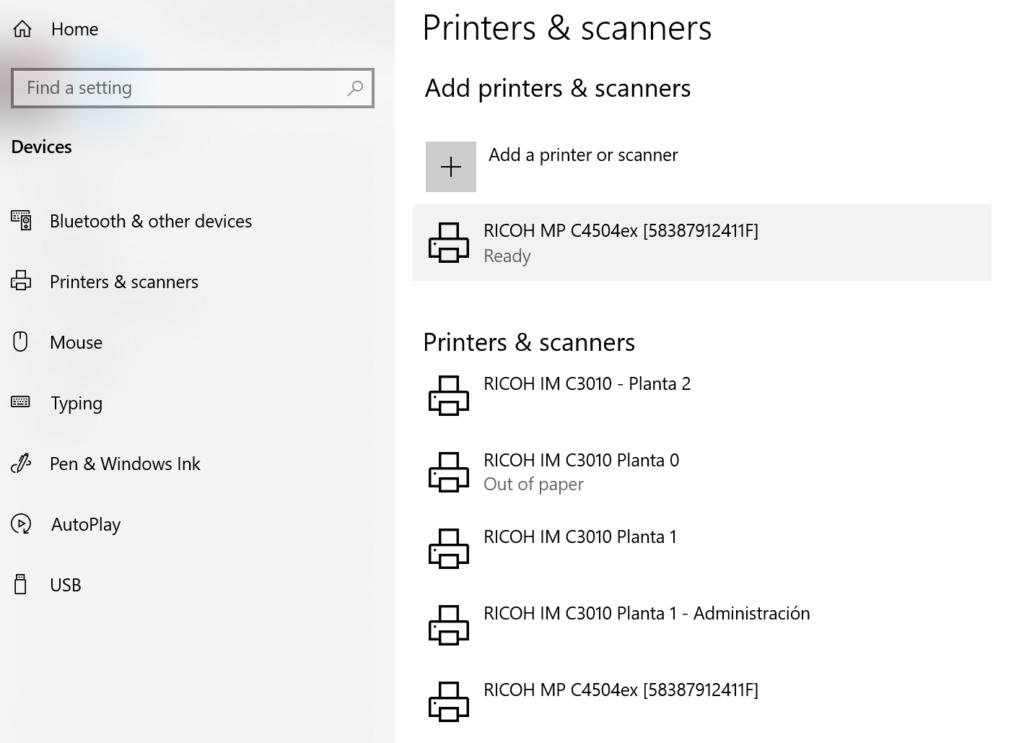
After a few seconds you printer should appear.

Posted on

Printer configuration (Model Ricoh IM C3010)

Ricoh IM C3010 are the printers at the floors 0, 1 and 2 of the ICE. The parameters for each one are the following.

LocationHostnameIP Address
Bottom floorRNP583879ADD13A10.50.1.156
1st floorRNP583879ADD1E610.50.1.152
3rd floorRNP583879ADD1EE10.50.1.153
2nd floorRNP583879ADD19410.50.1.154

Linux (Debian) configuration

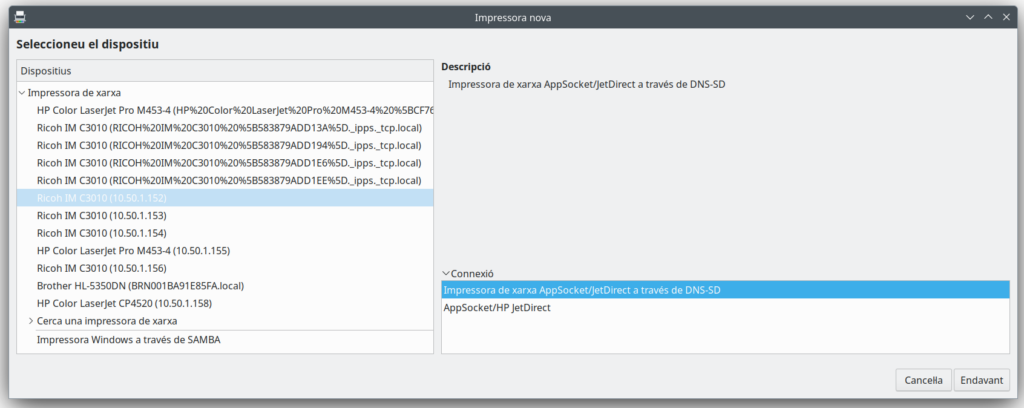
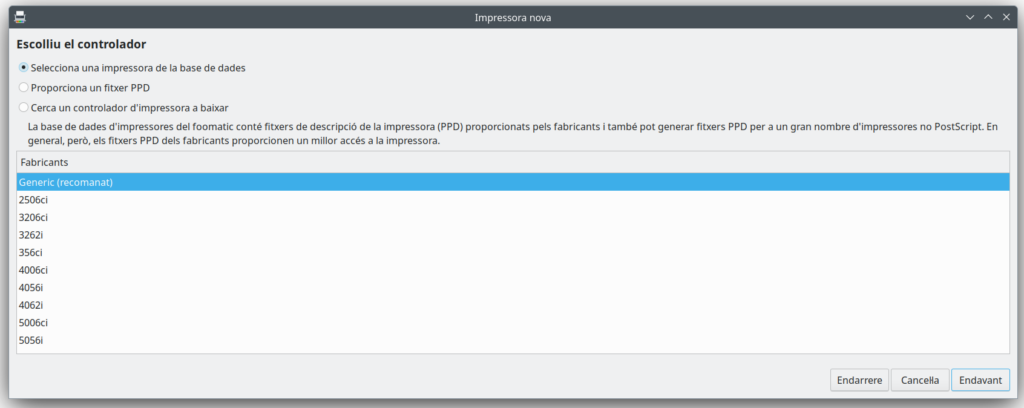
In your printer settings, add a new printer. Then, in the “Network Printer” section search using the IP address for the printer you want to use , in this example, the 1st floor printer with IP 10.50.1.152 will be configured, after selecting the printer, select this”Network Printer AppSocket/JetDirect via DNS-SD” thing as the conection type. Click next.

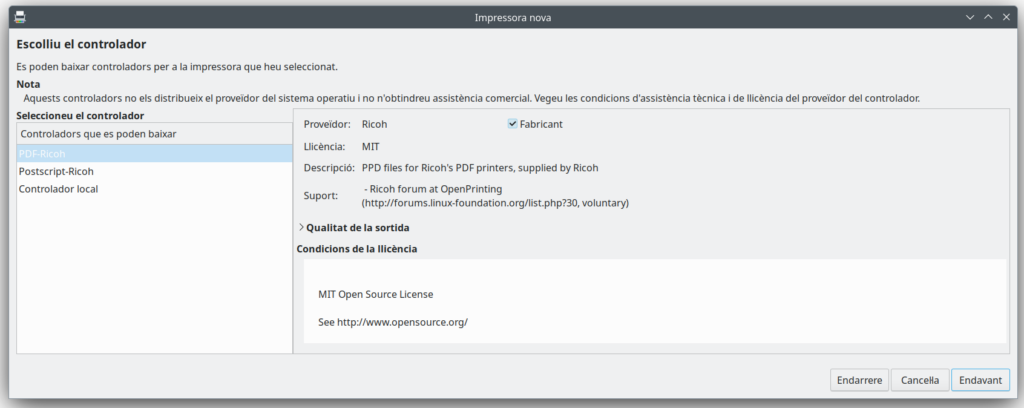
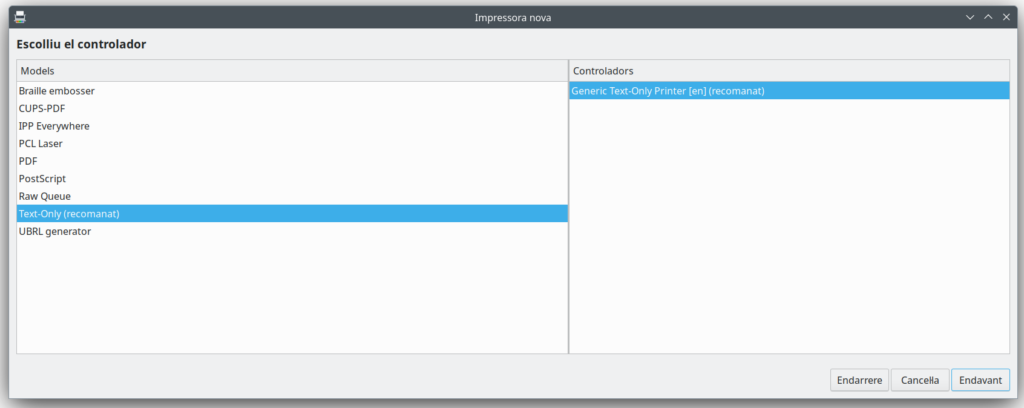
The drivers for this printer will be searched, select “PDF-Ricoh” as the driver.

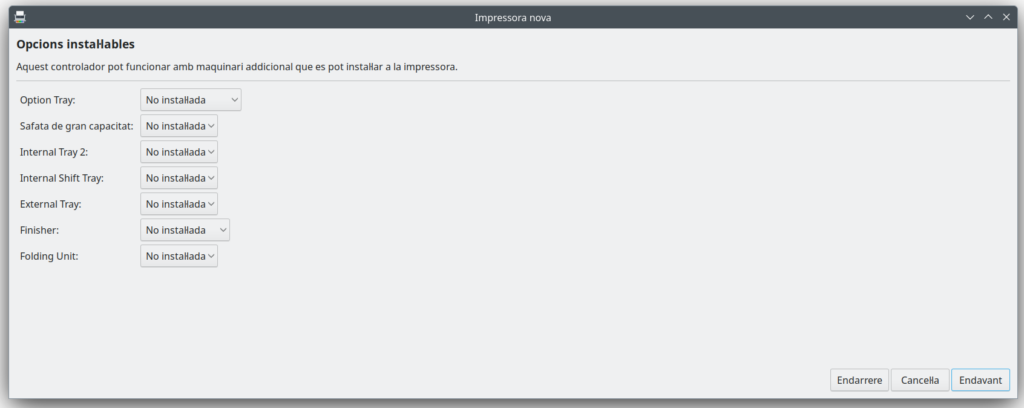
Then, you are going to be asked to do some configuration about stuff, just select the default or recomended on everything.

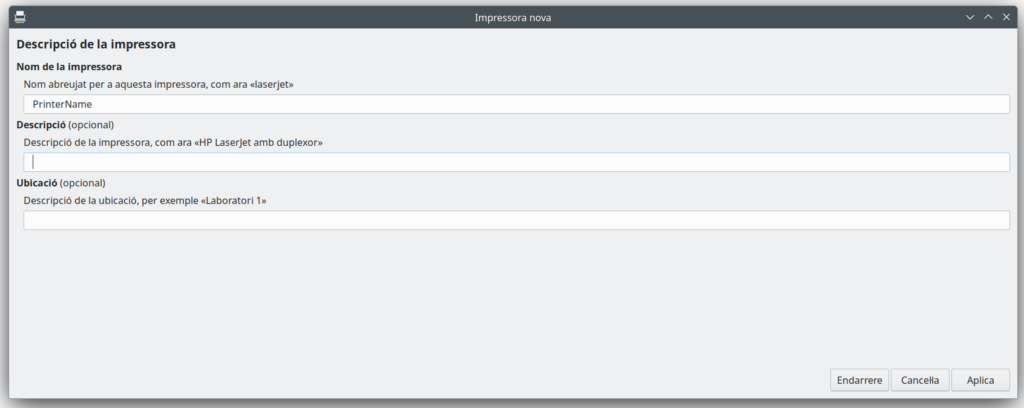
Finally, give the printer a display name, and end the configuration process. Additionaly, you can print a test page.

With this, the printer configuration is completed.

MAC configuration

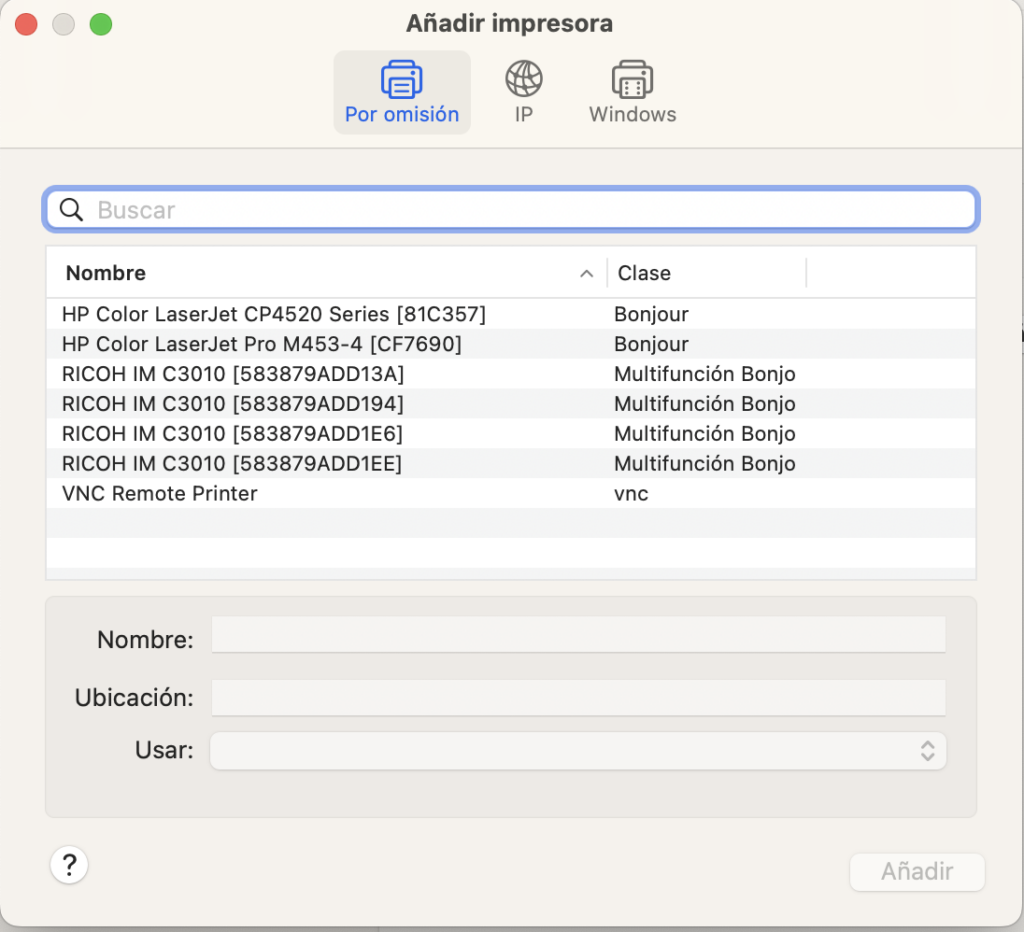
Go to the printer configuration and add a new printer. Then select the printer that you want to add based in the printer hostname, then click “Add”. The string between square brackets [] is the printer hostname, you can use the last two digits to difference the different printers.

With this, the printer configuration is completed.

Windows configuration

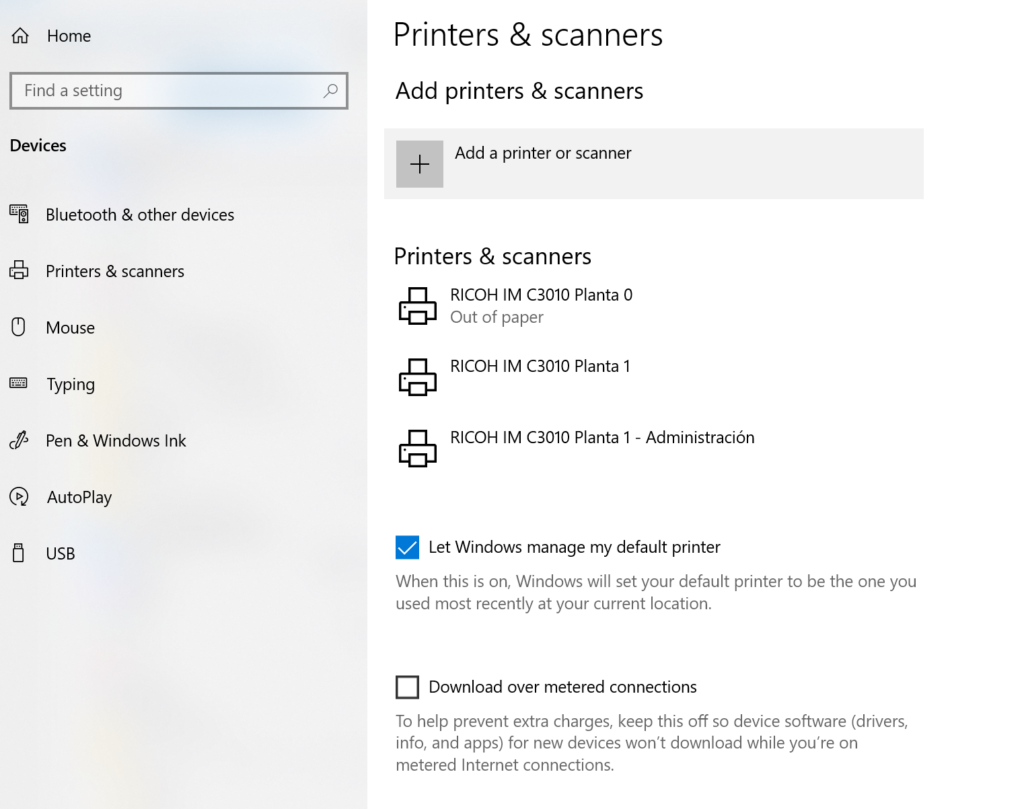
Open windows “Printers & Scanners” configuration and select “Add printer or scanner”.

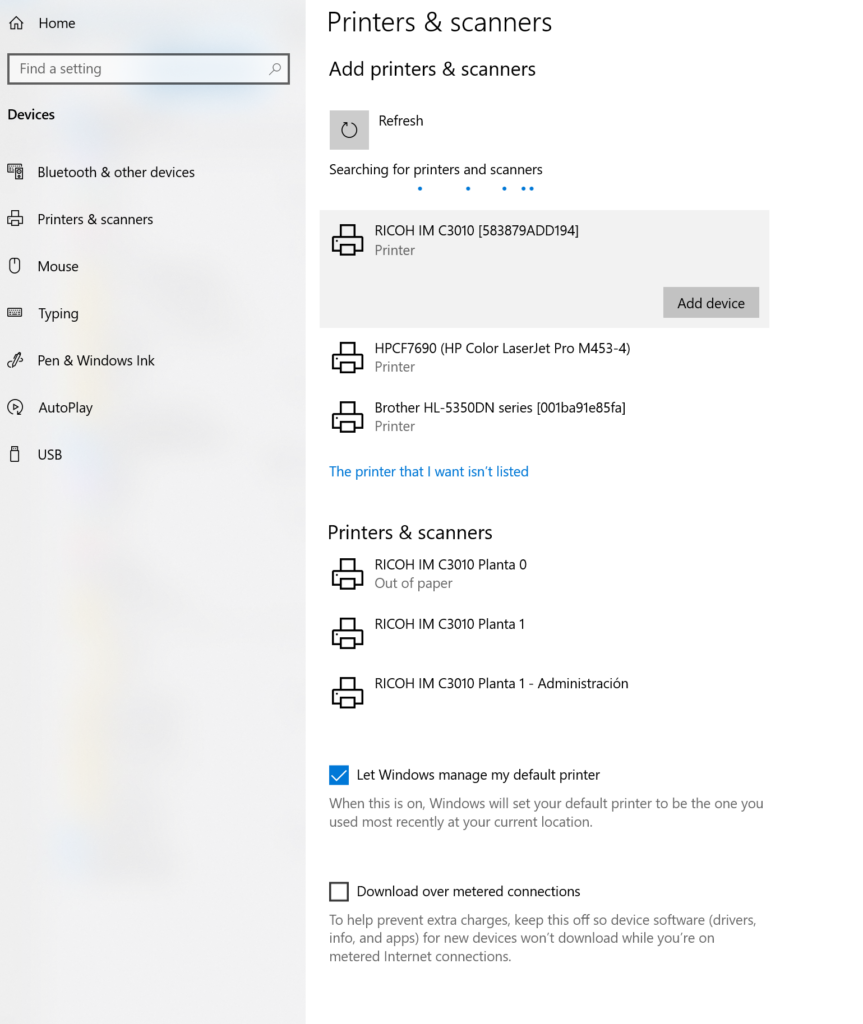
A list with the network printers will be displayed, then select the printer that you want to add based in the printer hostname, then click “Add device”. The string between square brackets [] is the printer hostname, you can use the last two digits to difference the different printers.

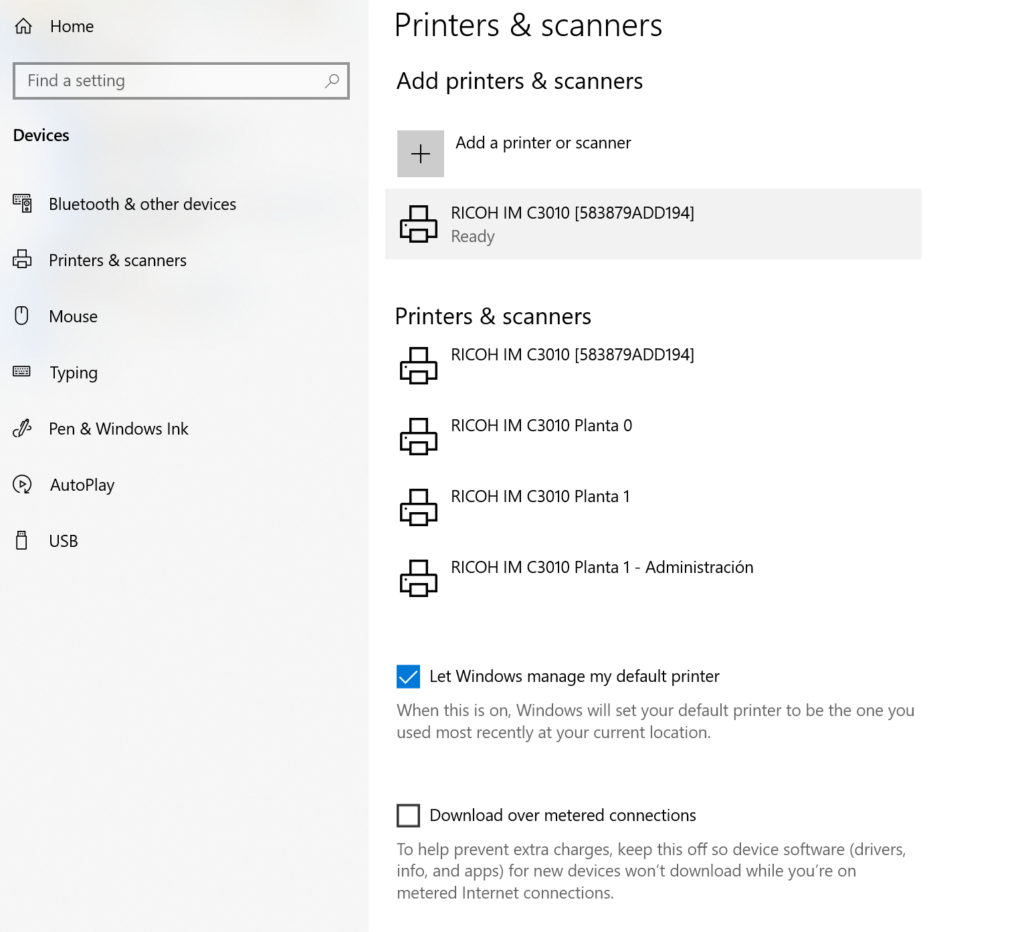
After a few seconds you printer should appear.

With this, the printer configuration is completed.

Posted on

VPN Access

There is two VPN that you can use, CSIC VPN and ICE VPN. The CSIC VPN is used when you are outside the ICE and need to connect to some resources provided by the CSIC (not the ICE), such as license servers. The ICE VPN, on the other hand, is necessary when you are outside the ICE and need to connect to some ICE (not CSIC) resource, such as HPC services.

This guide will show you how to configure both.

Step 1 – Request permission

Send us an email to ice_it-services@ice.csic.es with the subject “[VPN] Your Name”, including your DNI/NIE/Passport and the VPN you need to access to. With this information, we can request authorization from CSIC’s CAS to grant you access to the VPN service. This process may take some time. Once it’s complete, you’ll receive a notification and can proceed to the next step.

Step 2 – Download FortiToken

Download the 2FA app FortiToken in your smartphone so you can recive the access code (token) there.

Step 3 – Singup in FortiAuthenticator

Go to the FortiAuthenticator platform and log in with your CSIC credentials. The following menu will be shown.

Click on the FortiToken image with the OTP padlock and in the next window follow the prompts, which will lead to requesting a token from the administrator.

Step 4 – Activation mail

Once your request is accepted, you will recive an email with a QR code like the one in the image.

Now, open the FortiToken app installed in the step 2 and tap (+).

Select “Scan barcode” and scan the QR code in the email. You can also put the code manually.

Then, your token will show in the main screen.

Step 5 – Install FortiClient VPN client

Go to the FortiClient official site and download FortiClientVPN.

Run the setup wizard and install FortiCLientVPN in your system.

After restarting your computer, the FortiClientVPN icon should be visible in your system. To open the GUI, right click in the icon and select “Open FortiClientConsole”.

Then click in “Configure VPN” to add a new conection.

Let’s start with the CSIC’s VPN, give it a name and in the field “Remote Gateway” write “https://vpnssl-externa.csic.es”, finally, click in “Save” to close the window. Then the CSIC VPN profile should be displayed in the main screen.

Now, let’s configure the ICE VPN, to do so, click in the three bar icon next to the conection name and select “Add a new connection”.

Again, give it a name and in the field “Remote Gateway” write “https://vpn.ice.csic.es”, finally, click in “Save” to close the window.

With this, both VPN connections should be ready to use.

Posted on

Email client configuration – Thunderbird

In ICE we recomend using Thunderbird as your email client. In order to configure it with your account, follow the steps below.

First, put your CSIC credentials in the login form. Before continuing, click in “Configure manually”.

In the manual configuration section, fill the form with the data shown in the image. Note that the “Username” field is your DNI/NIE/Password. Then click in “Re-Test” to check if the configuration is correct.

If the configuration is correct, a message will be shown.

Finally, click “Done” to complete the configuration, your mailbox shoud be displayed.

Posted on

SACO (NextCloud Client)

SACO is a cloud storage service provided by CSIC, you can store up to 300GB of data. Under the hood It uses a software called NextCloud.

You can access it by login here with your CSIC credentials or install the desktop client for a better integration. This guide will show you how to install and configure the client.

First, go to the Next Cloud official site, hover into Download and select “Desktop & mobile apps”.

Select the installer according to your OS and run it.

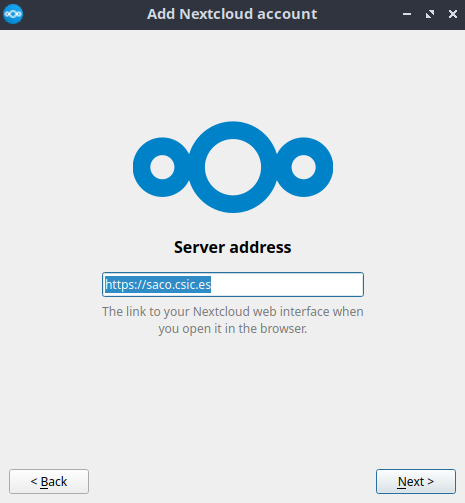
When the setup wizard opens, select”Log in”. In the next step, write https://saco.csic.es as the server address.

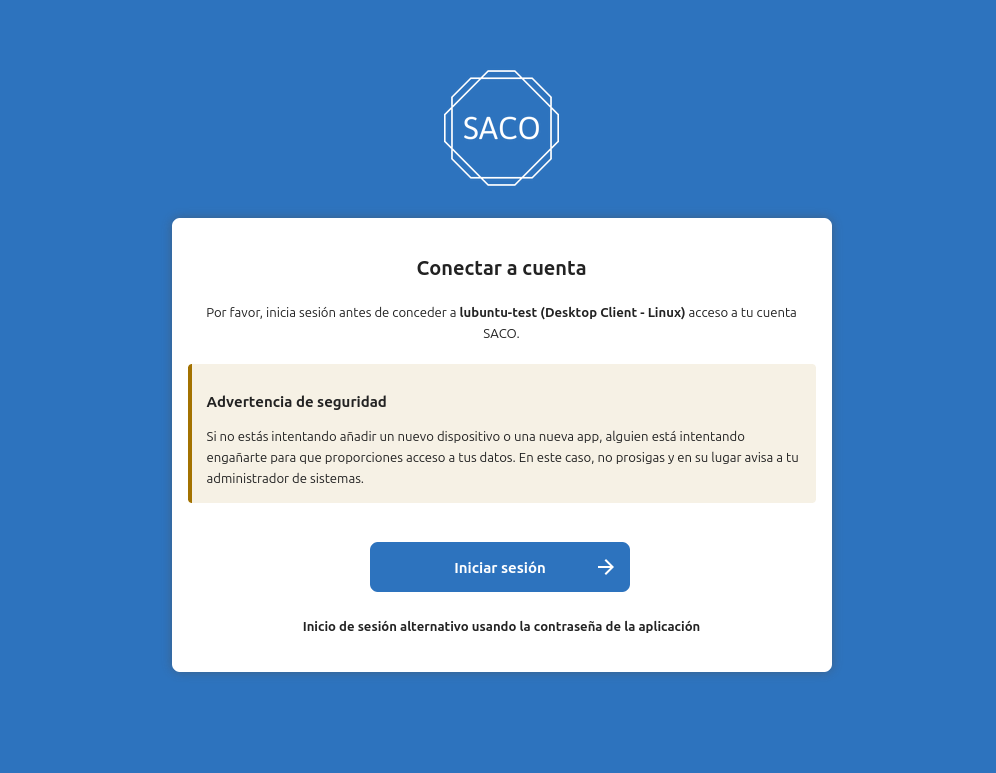
Click “Next” and then, a window in your browser will pop up. Click in “Iniciar sesión” to log in with your CSIC account.

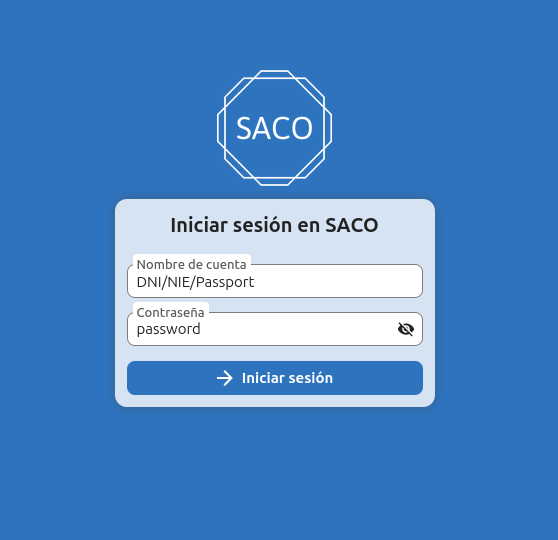
Write your CSIC credentials. Then, click in “Conceder acceso”(allow access). Once it’s done, you can close the browser.

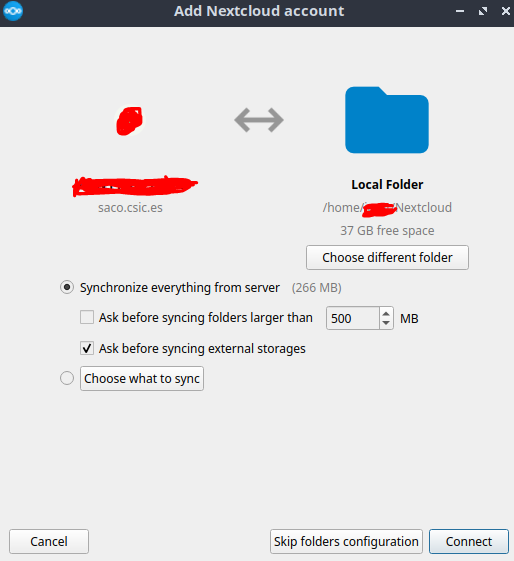
Now, if you look at the bottom-right of your system, the NextCloud icon will be shown, click into it. A window will open asking what should be synced. Click connect to complete the configuration.

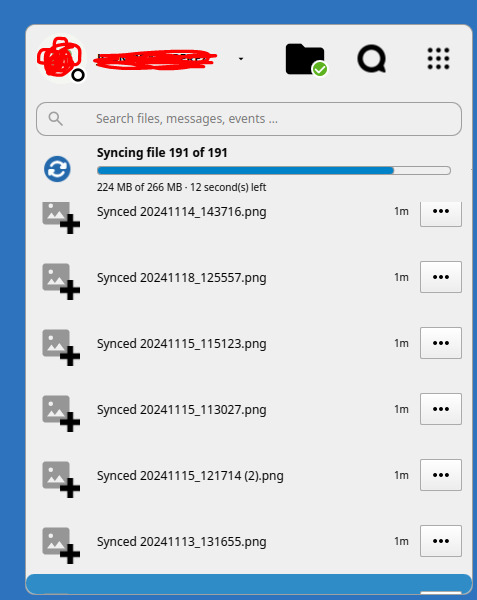
Then, all your files will start to sync and it should be ready to go.

Posted on

Personal Calendar

You can create calendars in the CSIC email platform and then use them in Thunderbird, these calendars are stored in a server, not in your local machine, so allways will be updated even if you do it from a different machine. First, go here and login with your CSIC account.

Once logged in, your mailbox will be shown, you can go to the calendar section by clicking in the icon at the top-right.

You’ll see that you have already a personal calendar created, click in the three dots to toggle the vertical menu and then go to “Links to this Calendar”.

Copy the “CalDAV URL” under the section “Authenticated User Access” and then open Thunderbird.

In Thunderbird, go to Calendar and click in “New Calendar”, a new window will pop out.

Select “On the Network” and click “Next”.

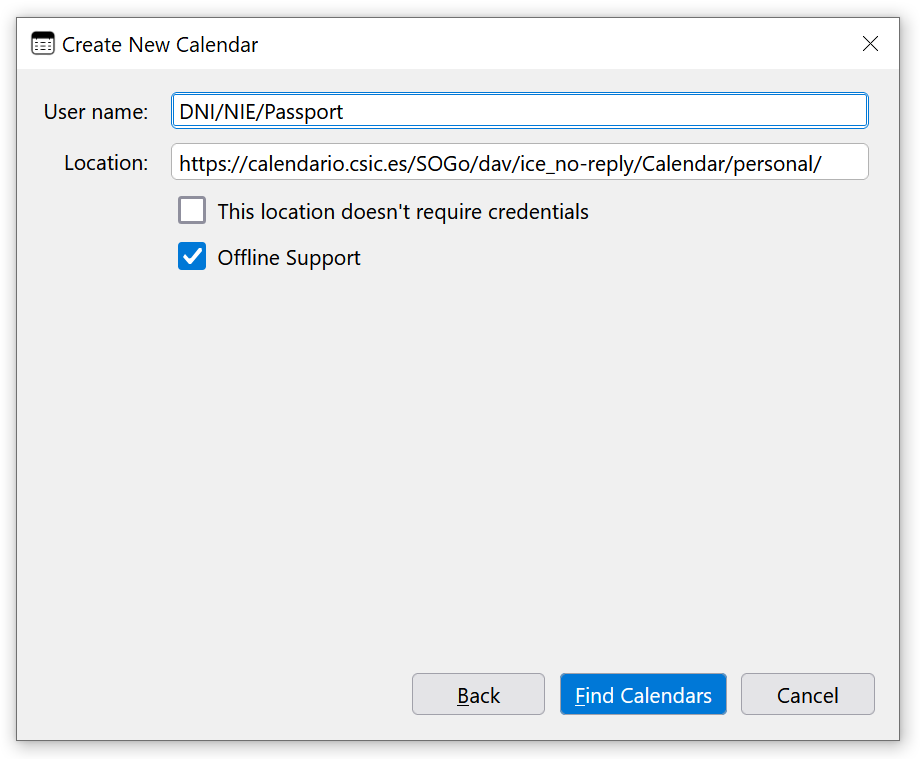
Next, write your CSIC username in “User name” and paste the CalDAV link that you copied before. Then, click “Find Calendars” and you will be prompted to put your password.

Finally, a final window where you can customize your calendar will be shown, click “Subscribe” to end the configuration process.

Posted on

CSIC Account

In order to access some ICE-CSIC services such as your email address, CSIC’s intranet and SACO (CSIC’s cloud storage service) you must have a CSIC account.

Between a few days and up to two weeks after signing your contract, you will receive an email from ice_it-services@ice.csic.es informing you that your account has been created and that a temporary password has been assigned. Once you have this information, you must complete the “Mi primer acceso” procedure to activate your account. You can access “Mi primer acceso” here.

In this image you can see translation of the different sections.

Once this process is completed, your should be able to access your account, you can login here to access your mailbox, keep in mind that the username is NOT your email address, is your DNI/NIE/Passport.

Additionally, you can configure Thunderbird as your email client. You can see a detailed guide here.

Posted on

Shared Calendar

You can create shared calendars in the CSIC email platform and then use them in Thunderbird. To do so, go here and login with your CSIC account.

Once logged in, your mailbox will be shown, you can go to the calendar section by clicking in the icon at the top-right.

This image has an empty alt attribute; its file name is image-1024x224.png

Click in the add icon (+) to create a new calendar and give it a name.

Once created, click in the three dots to toggle the vertical menu and then go to “Sharing…”.

In the search bar, type the email of the person you want to share the calendar with and select it.

Check the checkboxes according to your preferences and click “save”.

With this, the person has access to your calendar. Now, click in the three dots to toggle the vertical menu and then go to “Links to this Calendar”.

Copy the “CalDAV URL” under the section “Authenticated User Access” and send it to the other people.

The next steps are the same as in the presonal calendar configuration, each person you shared the calendar with, has follow it in order to configure the shared calendar in Thunderbird. Open Thunderbird, go to Calendar and click in “New Calendar”, a new window will pop out.

This image has an empty alt attribute; its file name is image-3-872x1024.png

Select “On the Network” and click “Next”.

This image has an empty alt attribute; its file name is image-4.png

Next, write your CSIC username in “User name” and paste the CalDAV link that you copied before. Then click “Find Calendars” and you will be prompted to put your password.

Finally, a final window where you can customize your calendar will be shown, click “Subscribe” to end the configuration process.

Posted on

Mailing Lists

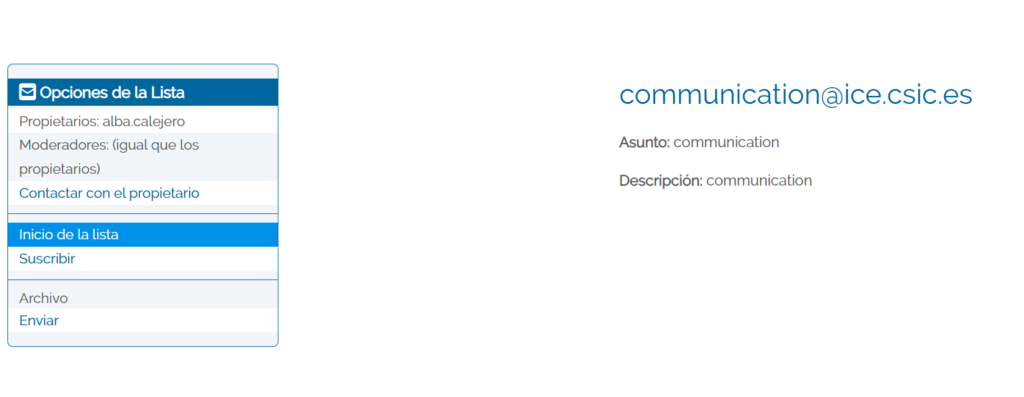
You can subscribe to the different mailing lists here.

First, you need to log in by clicking “Acceder” and login using your mail address (not your DNI, NIE, Passport) and CSIC’s account password.

Then, select the list you want to subcribe to and click “Suscribir”.

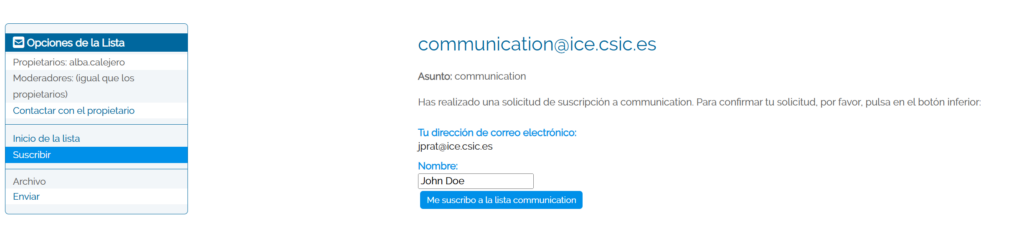
An additional form will be displayed. Write your name and click in the button, and then, click in “Suscribirse” to complete this process.

With this, the owners will be notified and after they accept your request, you should recive the emails of that list.